xrotor.github.io
DD Windows 一键安装脚本
精简版 DD Windows 重装脚本,适合需要快速把 VPS 重装为常用 Windows 镜像的场景。
安装前提组件
建议先进入 screen,避免 SSH 断开导致操作中断。
Debian / Ubuntu
apt-get install -y xz-utils openssl gawk file wget screen && screen -S os
RedHat / CentOS
yum install -y xz openssl gawk file glibc-common wget screen && screen -S os
异常处理
如果依赖安装或下载出现异常,可以先刷新软件源缓存。
RedHat / CentOS:
yum makecache && yum update -y
Debian / Ubuntu:
apt update -y && apt dist-upgrade -y
使用方法
wget -O dd-windows.sh https://raw.githubusercontent.com/ImXcopter/dd-windows/main/dd-windows.sh && chmod +x dd-windows.sh && bash dd-windows.sh
如果 VPS 的 CA 证书环境过旧,可以使用:
wget --no-check-certificate -O dd-windows.sh https://raw.githubusercontent.com/ImXcopter/dd-windows/main/dd-windows.sh && chmod +x dd-windows.sh && bash dd-windows.sh
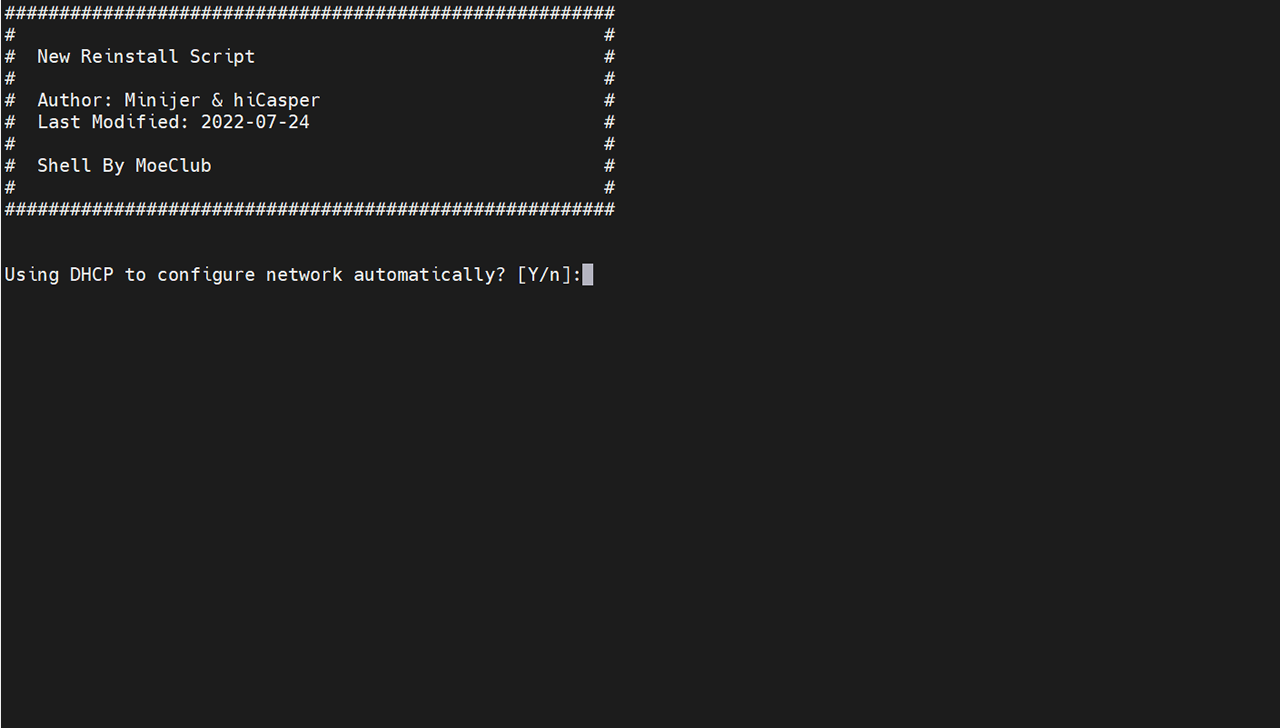
脚本启动后会先询问是否使用 DHCP 自动配置网络。
输入 Y 表示重装后的系统使用 DHCP 自动获取 IP。输入 N 表示使用静态网络配置。脚本会尝试自动检测当前 VPS 的 IP、网关和掩码,并要求确认;如果检测不正确,可以手动输入正确的网络信息。
DD 重装后能否联网,很大程度取决于这里的网络配置是否正确。
镜像 URL 前缀
为了避免把真实镜像目录公开在 GitHub,脚本里只保留镜像文件名,不写死完整下载地址。
选择内置系统编号后,脚本会要求输入这个镜像文件所在的 URL 前缀:
请输入镜像目录前缀(将自动拼接:文件名,例如 https://your-domain.example/folder_name/)
> https://your-domain.example/folder_name/
你可以输入域名根路径,也可以输入带目录的路径,例如:
https://your-domain.example/
https://your-domain.example/folder_name/
脚本会把你选择的编号对应文件名拼接到前缀后:
https://your-domain.example/cxthhhhh.com_Windows_Server_2022_DataCenter_CN_v2.12.vhd.gz
https://your-domain.example/folder_name/Teddysun.com_Windows10_LTSC_CN.xz
https://your-domain.example/folder_name/nat.ee_Windows%2010_Enterprise_LTSC_2021_x64_CN_UEFI.vhd.gz
规则:
- 必须以
http://或https://开头 - 末尾没有
/会自动补齐 - 可以只填域名根路径,例如
https://your-domain.example - 选择系统编号后,脚本才会询问这个镜像的 URL 前缀
- 脚本只会检查你最终选择的那个镜像文件是否存在
- 如果该文件无法访问,会提示错误并停止安装;不要求其它未选择的镜像也存在
- 文件名里的空格会在下载 URL 中自动按
%20处理
系统选择
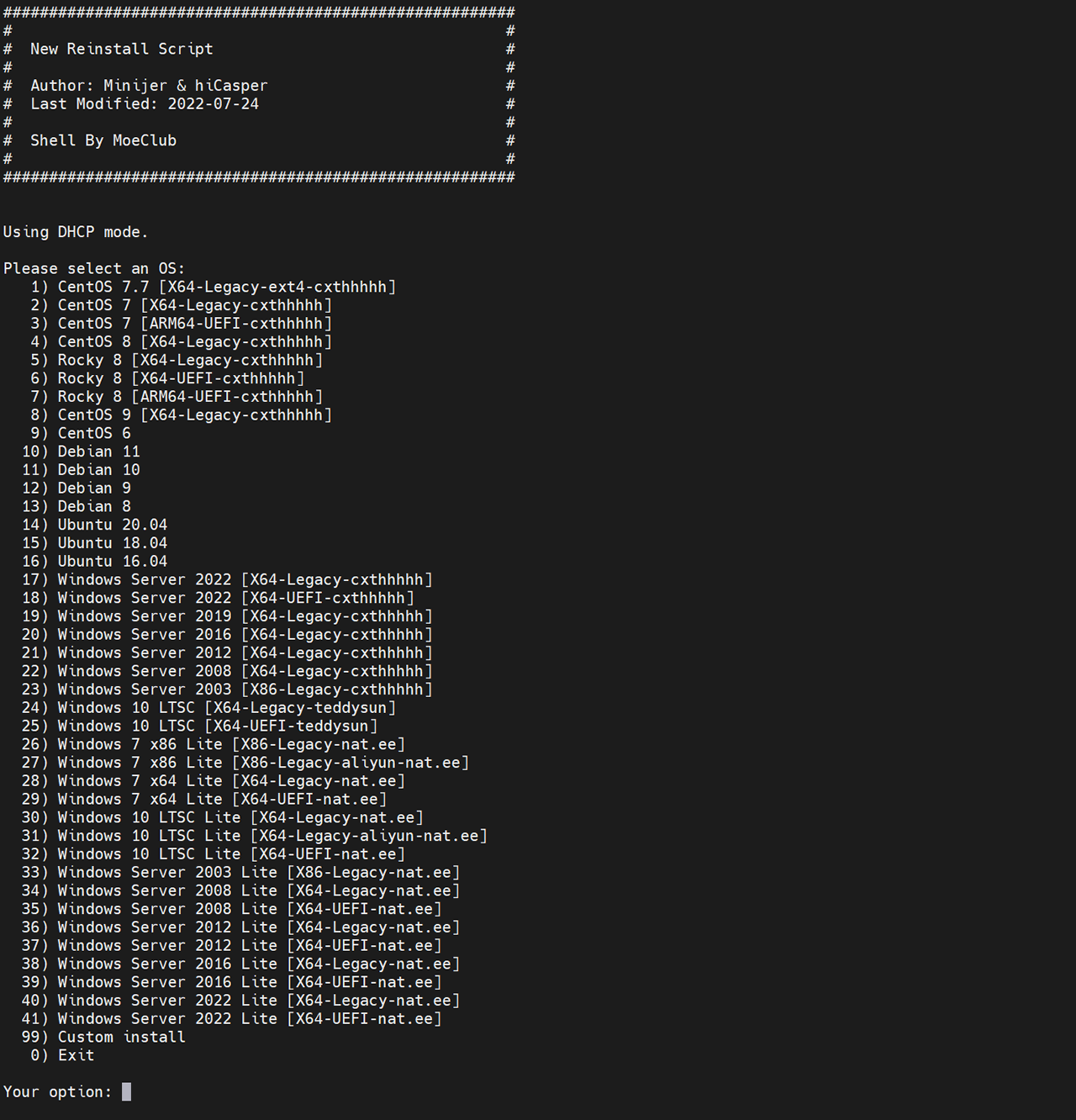
当前脚本菜单已精简为以下选项:
1  Windows Server 2022 [X64-Legacy-cxthhhhh]
2  Windows Server 2022 [X64-UEFI-cxthhhhh]
3  Windows 10 LTSC [X64-Legacy-teddysun]
4  Windows 10 LTSC [X64-UEFI-teddysun]
5  Windows 10 LTSC Lite [X64-Legacy-nat.ee]
6  Windows 10 LTSC Lite [X64-Legacy-aliyun-nat.ee]
7  Windows 10 LTSC Lite [X64-UEFI-nat.ee]
8  Windows Server 2022 Lite [X64-Legacy-nat.ee]
9  Windows Server 2022 Lite [X64-UEFI-nat.ee]
99 自定义镜像
0 退出
选择系统后,脚本会显示对应默认密码,确认后开始调用 InstallNET.sh 执行 DD。
系统密码列表
| 序号 | 系统名称 | 默认密码 |
|---|---|---|
| 1 | Windows Server 2022 | cxthhhhh.com |
| 2 | Windows Server 2022 UEFI | cxthhhhh.com |
| 3 | Windows 10 LTSC | Teddysun.com |
| 4 | Windows 10 LTSC UEFI | Teddysun.com |
| 5 | Windows 10 LTSC Lite | nat.ee |
| 6 | Windows 10 LTSC Lite 阿里云专用 | nat.ee |
| 7 | Windows 10 LTSC Lite UEFI | nat.ee |
| 8 | Windows Server 2022 Lite | nat.ee |
| 9 | Windows Server 2022 Lite UEFI | nat.ee |
| 99 | 自定义镜像 | 由镜像本身决定 |
内置文件名列表
如果你只准备安装某一个系统,只需要上传对应的那一个文件。下面是菜单编号对应的内置文件名:
1  cxthhhhh.com_Windows_Server_2022_DataCenter_CN_v2.12.vhd.gz
2  cxthhhhh.com_Windows_Server_2022_DataCenter_CN_v2.12_UEFI.vhd.gz
3  Teddysun.com_Windows10_LTSC_CN.xz
4  Teddysun.com_Windows10_LTSC_CN_UEFI.xz
5  nat.ee_Windows 10_Enterprise_LTSC_2021_x64_CN.vhd.gz
6  nat.ee_Windows 10_Enterprise_LTSC_2021_x64_CN_aliyun.vhd.gz
7  nat.ee_Windows 10_Enterprise_LTSC_2021_x64_CN_UEFI.vhd.gz
8  nat.ee_Windows_Server_2022_DataCenter_x64_CN.vhd.gz
9  nat.ee_Windows_Server_2022_DataCenter_x64_CN_UEFI.vhd.gz
自定义镜像
选择 99 自定义镜像 时,可以直接输入完整镜像 URL,不使用上面的固定文件名列表。
适合临时测试其他 DD 镜像,或者不想使用内置 9 个文件名的情况。
注意事项
- DD 重装会覆盖当前系统磁盘,运行前请备份重要数据。
- 建议确认 VPS 控制台可用,避免网络配置错误后无法恢复。
[X64-Legacy-cxthhhhh]表示 AMD64 位、传统 BIOS 启动、cxthhhhh 定制镜像;其它标签同理。UEFI表示支持 UEFI 启动,UEFI 机器请选择带UEFI的镜像。aliyun表示阿里云专用镜像;阿里云因特殊驱动,DD 安装 Windows 建议优先选择阿里云专用版,当前编号为6。cxthhhhh、teddysun、nat.ee为镜像来源代称。- 系统默认密码会在选择相应序号后提示,请注意记录。
- Google Cloud 原版系统基础上 DD 时,可能自动获取到
255.255.255.255这样的错误子网掩码;如遇到这种情况,请手动改成正确值,例如255.255.255.0,否则安装完成后主机可能离线。 - netcup 的 VPS 建议选择镜像编号
8。 - Oracle Cloud(甲骨文云)建议选择支持
UEFI的镜像;基础系统优先选择 Ubuntu,原系统是 CentOS 时可能无法成功。 - 脚本和镜像来源请自行审查,公开脚本不保证第三方镜像安全性和版权状态。
报错处理
如果出现类似 Error! grub.cfg 的问题,可以尝试:
mkdir /boot/grub2 && grub-mkconfig -o /boot/grub2/grub.cfg
然后重新执行脚本。
Hetzner 机器 DD Windows
- 进入救援(Rescue)模式。
- 根据系统提示用户名和密码,进入救援系统。用 root 用户 SSH 登录后执行:
wget -O- DD镜像下载链接 | gunzip | dd of=/dev/sda
注意:DD镜像下载链接 为 DD 镜像文件的下载地址,/dev/sda 为第一启动盘。
- 等待程序跑完后输入
reboot重启服务器。 - 重启后即可尝试远程桌面连接。
如需激活 Windows,可使用沧水的 KMS 服务:https://kms.cangshui.net/
特别感谢
感谢 MoeClub、Vicer、cxt、hiCasper、Minijer 等前辈脚本和思路。本脚本只是按个人使用场景做了精简、重排和交互优化。
版权申明: 以上脚本和系统镜像均来源于网络整理,请自行判断安全性和版权状态。如有侵犯权益,请联系处理。